Cisco Secure Firewall 3100 Setup and Software Upgrade Guide
The Cisco Secure Firewall 3100 setup process is the first and most important step in deploying next-generation protection for your enterprise or data center network.
This comprehensive guide explains how to configure your Cisco Secure Firewall 3100 Series, initialize its management interface, choose between FDM and FMC management, and perform a Cisco FTD software upgrade safely and efficiently.
Whether you’re setting up a Cisco Secure Firewall 3120, 3110, 3140, or 3150, this tutorial walks through every step from console login to system verification.

Initial Cisco Secure Firewall 3100 Setup via Console
When performing the Cisco Secure Firewall 3100 initial setup, connect to the console port to access the command-line interface (CLI).
- Console parameters: 9600 baud, 8N1
- Default credentials:
- Username:
admin - Password:
Admin123
- Username:
After login:
- Change the default password.
- Accept the End-User License Agreement (EULA).
- Continue with the FTD setup wizard to define network and management parameters.
This first-time configuration ensures the device is ready for management access and secure operation.
Configure the Out-of-Band (OOB) Management Interface
To complete the Cisco Secure Firewall 3100 setup, assign an IP address, subnet mask, and default gateway for the management0 interface.
> configure network ipv4 manual 10.19.254.45 255.255.255.0 10.19.254.254
> configure network dns servers 8.8.8.8 8.8.4.4
> configure network hostname FTD-3120
Check your configuration with:
> show networkRecommendation: Connect the management0 port to a dedicated management VLAN to keep OOB traffic isolated from production traffic.
FDM vs FMC: Choose Your Cisco Secure Firewall Management Option
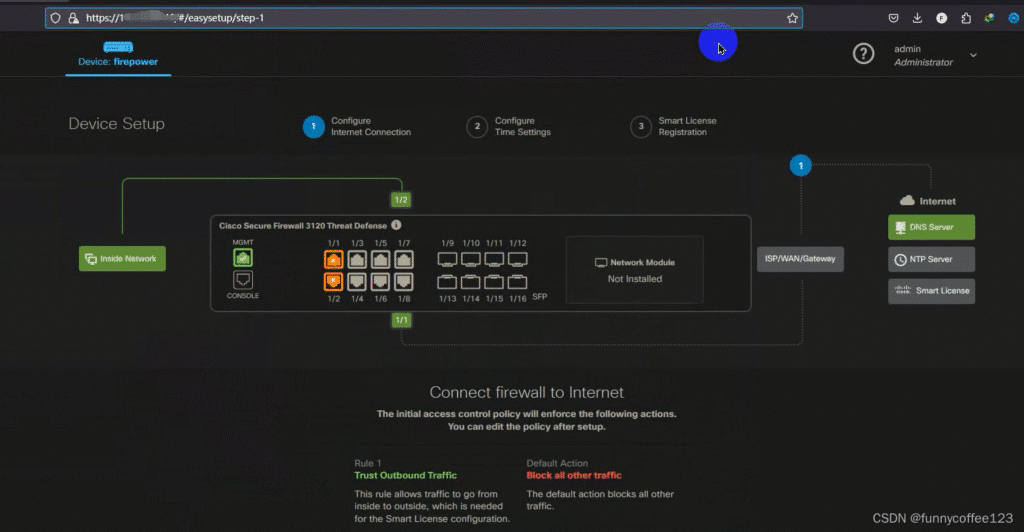
During the Cisco Secure Firewall 3100 setup wizard, you will be prompted to select your preferred management mode:
- FDM (Firepower Device Manager) – For standalone or branch deployments.
- FMC (Firepower Management Center) – For centralized multi-device management.
For most single-device environments, local FDM management is recommended.
Access it via:https://<management_IP>
The Cisco FDM interface simplifies configuration, software updates, and monitoring.
Cisco FTD Software Upgrade (Example: 7.1.0 → 7.2.5)
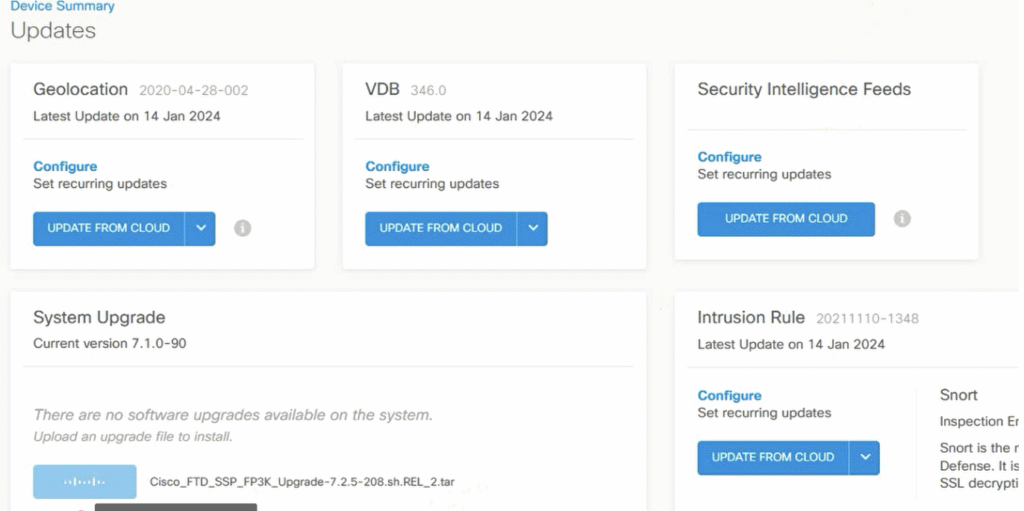
After completing the Cisco Secure Firewall 3100 setup, upgrade your system software to ensure optimal performance and security compliance.
Upgrade through FDM GUI
- Download the latest
.pkgfrom Cisco Software Center. - Upload it to the device through Firepower Device Manager (FDM).
- Start the upgrade; the device will run a validation process (
POST_UPGRADE_VALIDATION). - The system automatically reboots after completion.
Upgrade through CLI
If you prefer, upload and install via SCP or CLI commands.
After reboot, confirm successful installation:
> show versionKeeping your firmware updated is essential for long-term security and feature support.
Verify Configuration and System Health
Once your Cisco Secure Firewall 3100 setup and upgrade are complete, verify system health and network reachability:
- Ping the gateway or DNS server to confirm connectivity.
- Access FDM at
https://<management_IP>. - Check that the device status is Healthy.
If you cannot reach the interface:
- Run
show networkto verify link status. - Confirm that VLAN tagging is correct.
- Ensure TCP port 443 is open for management.
Best Practices for Cisco Secure Firewall 3100 Setup
Following these best practices ensures that your Cisco Secure Firewall 3100 setup remains secure and maintainable:
- Back up configurations before any upgrade.
- Use a dedicated management VLAN for isolation.
- Enable NTP synchronization for accurate logs and certificates.
- Review release notes before applying new firmware.
- Perform upgrades during off-peak hours.
- Regularly verify configuration consistency with
show running-config.
Conclusion
Completing the Cisco Secure Firewall 3100 setup properly ensures secure, stable, and scalable network protection.
By configuring the management interface, selecting the correct management mode, and keeping firmware current, you maximize reliability and reduce potential downtime.
Whether you’re deploying a Cisco 3120 or managing multiple firewalls, consistent setup practices ensure network resilience and compliance with modern security standards.