How to Factory Reset Cisco 8841 IP Phone – Step-by-Step Reset & Setup Guide
Introduction
When your Cisco 8841 IP Phone fails to register, shows “Unprovisioned,” or behaves abnormally after firmware updates, Factory Reset Cisco 8841 can quickly restore it to working condition.
In this guide, we’ll explain how to factory reset a Cisco 8841 phone step by step, including both hardware button reset and menu-based reset, plus useful tips for re-provisioning after the reset.
Why You May Need to Reset Your Cisco 8841
- Registration failure — the phone can’t connect to CUCM or SIP server.
- Configuration conflicts — leftover VLAN or security certificates cause boot errors.
- Device transfer — moving the phone to another user or organization.
- Firmware corruption — failed upgrade leaves phone stuck on loading screen.
- Performance issues — random reboots or frozen display.
Before You Begin
- Write down the MAC address (displayed on the back label).
- Confirm the power source (PoE switch or AC adapter).
- Backup any personal configurations or speed dials.
- Inform users that all local settings will be erased.
- Ensure network connectivity for re-registration after reset.
Method 1: Factory Reset Cisco 8841 Using Keypad (Hard Reset)
This method works even when the phone is unresponsive or stuck on boot.
Step 1: Disconnect the power or Ethernet cable.

Step 2: Press and hold the # (pound) key while reconnecting the power.
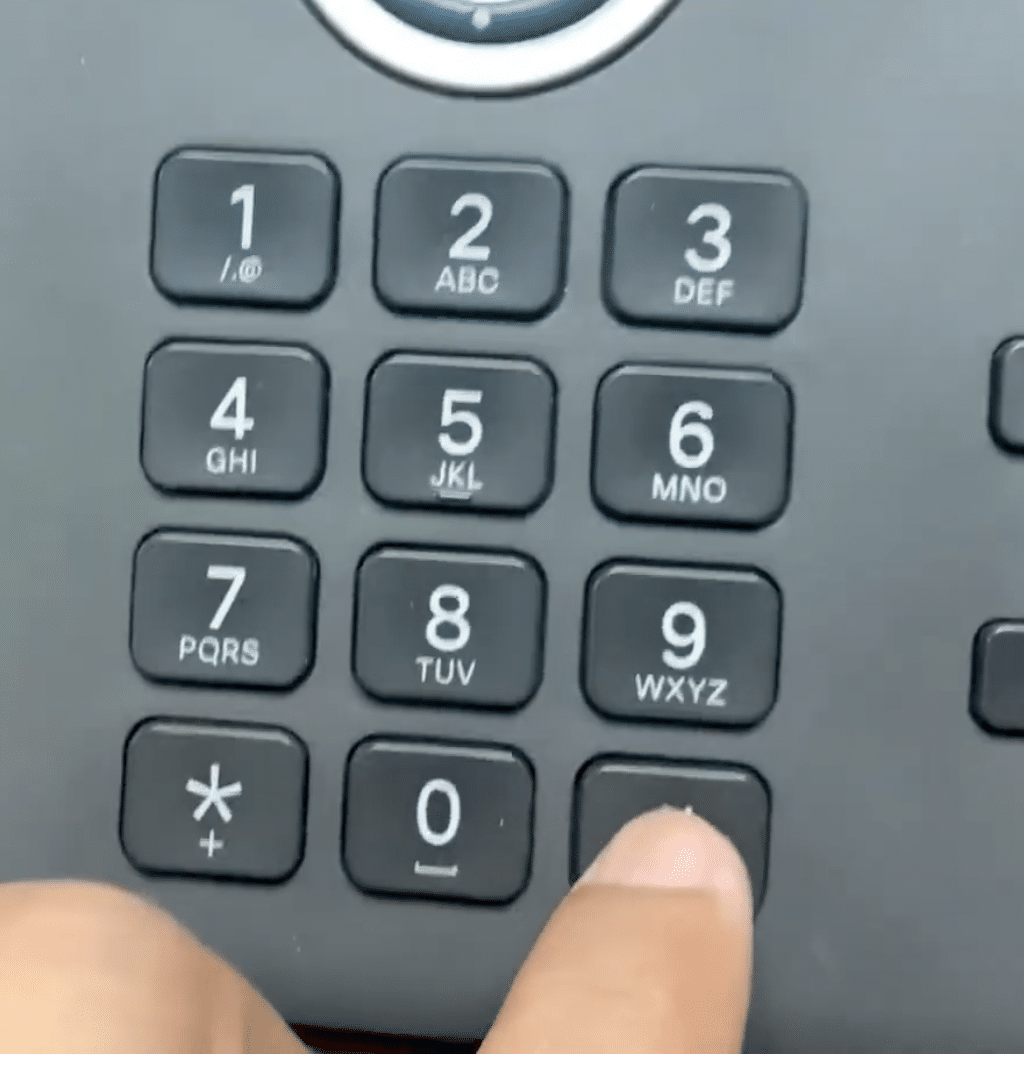
Step 3: Wait until the Headset and Speaker lights flash on. Then release the # key.

Step 4: Immediately dial this reset sequence:123456789*0#

If entered correctly, the Mute button will light up and the phone will begin resetting.
Do not disconnect the power until the process finishes.
Step 5: The phone will reboot several times, then return to the initial setup screen.
Method 2: Reset Cisco 8841 via Phone Menu (Soft Reset)
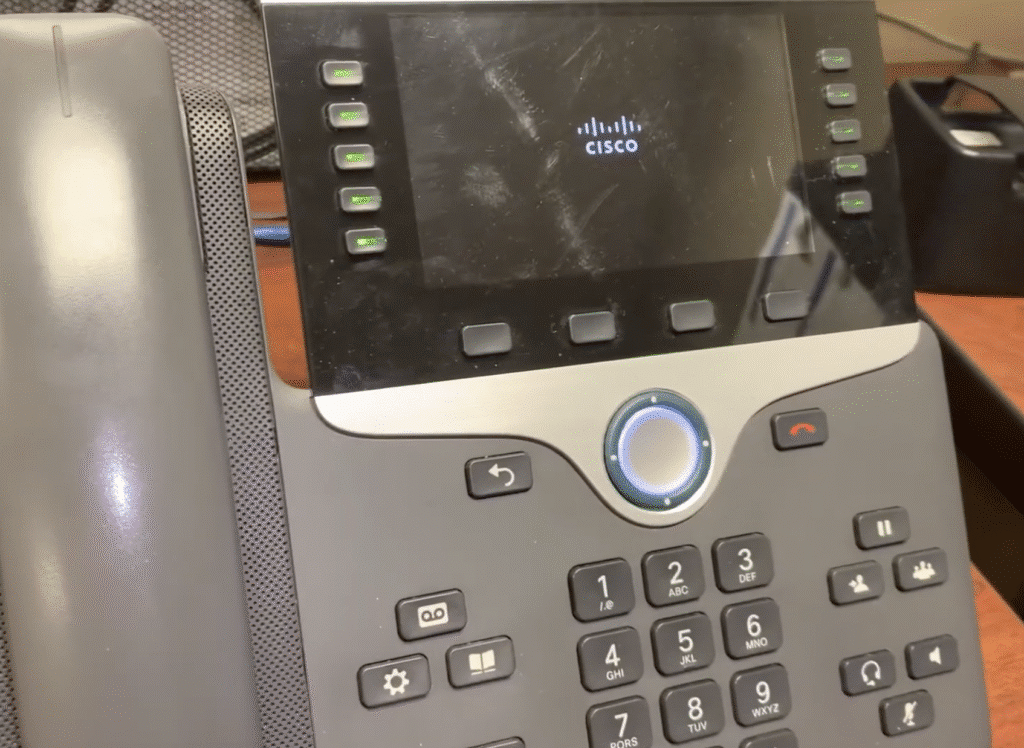
If your phone boots normally and you can access the settings menu:
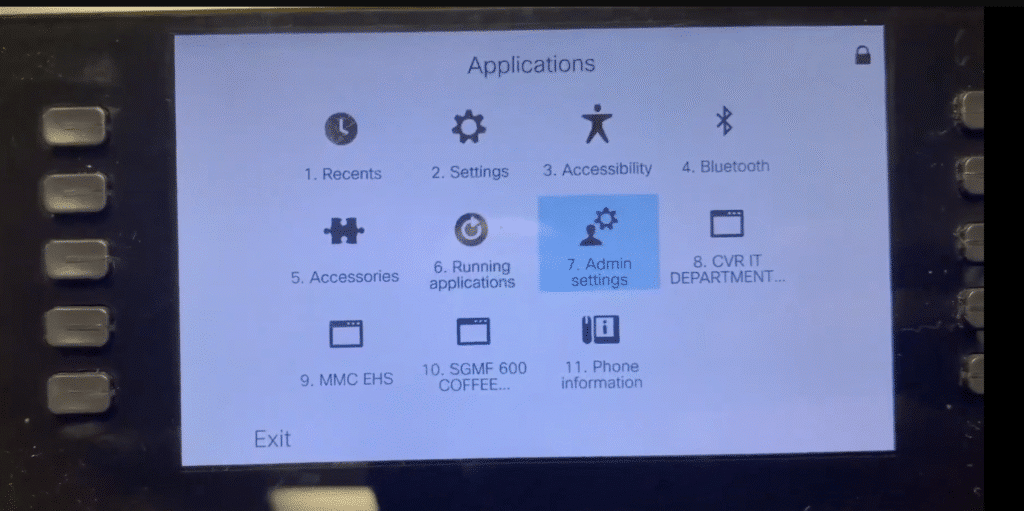
- Press the Settings (gear icon) button.

- Navigate to:
Admin Settings → Reset Settings → All Settings
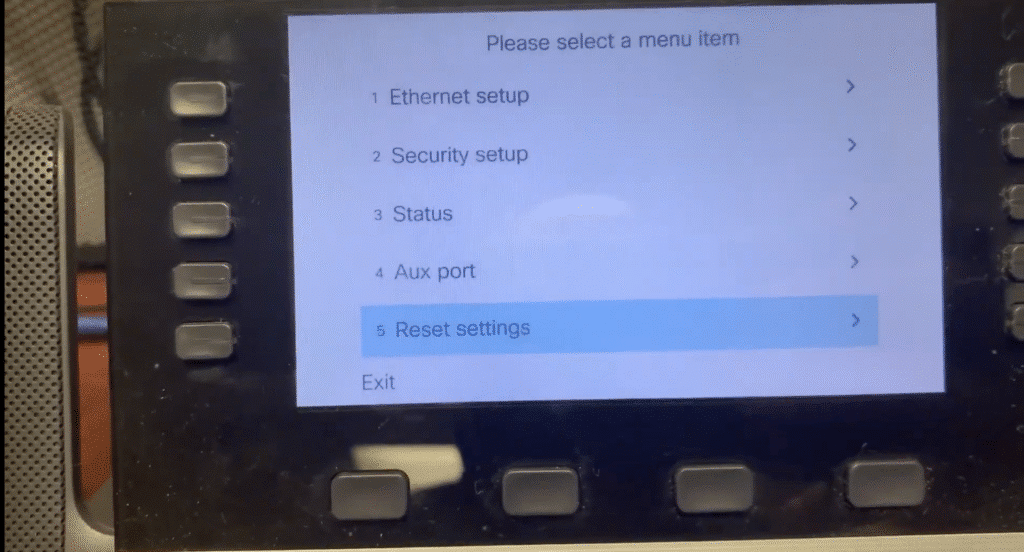

- Confirm when prompted.
- The phone will restart and clear all configurations.
What Happens After Reset
- All user configurations, network settings, SIP accounts, and security certificates are erased.
- The phone will boot into its default factory state.
- You’ll need to re-provision the phone to your Cisco Unified Communications Manager (CUCM), Webex Calling, or SIP platform.
Re-Provisioning the Cisco 8841 After Factory Reset
- Connect the phone to your network switch or PoE port.
- Obtain an IP address via DHCP.
- The phone will attempt to reach your TFTP or provisioning server.
- If you’re using CUCM, verify the Device Pool and MAC Address registration.
Troubleshooting Common Issues
|
Problem |
Possible Cause |
Solution |
|---|---|---|
|
Cisco 8841 doesn’t start reset sequence |
Wrong timing when releasing “#” key |
Hold until Headset and Speaker LEDs flash, then release |
|
No response after dialing reset code |
Incorrect key sequence |
Re-enter |
|
Stuck on “Registering” screen |
Provisioning server not reachable |
Check VLAN, DHCP, or firewall settings |
|
Phone boots but still uses old settings |
Partial reset |
Use “All Settings” option in Admin Menu for full reset |
Conclusion
A factory reset on Cisco 8841 is the quickest way to solve registration issues, firmware errors, or configuration conflicts.
By following the keypad reset or menu reset method above, you can restore your IP phone to factory defaults in minutes.
Need help choosing or deploying Cisco IP phones for your business?
Visit Layer23 Switch for expert support and the best Cisco 8841 prices worldwide.