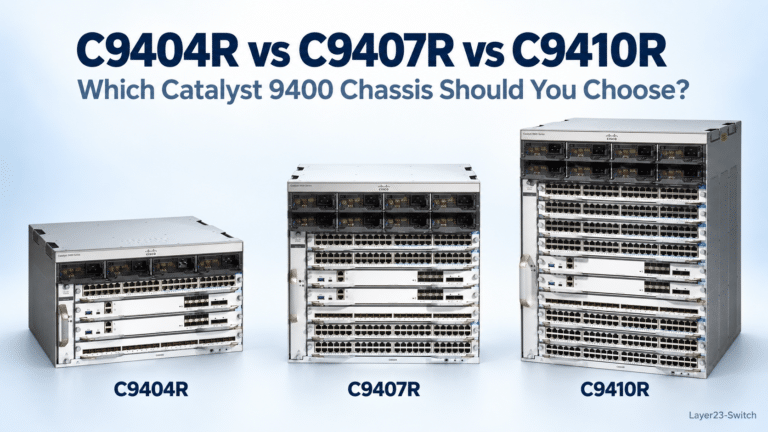
How to Find a Cisco Serial Number: Labels, Commands, and Tools
Quick answer: Find the serial number next to S/N, SN, or Serial Number on the chassis label. On a powered Cisco device, start with show inventory where the platform supports it; the chassis entry normally gives you the Product ID (PID), Version ID (VID), and Serial Number (SN) together. Record all three, then use the Layer23-Switch Cisco Serial Number Check tool for a quick lookup or a Cisco portal when you need official contract and account information.
A modular device may report separate serial numbers for its chassis, supervisor, line cards, power supplies, and fans. The practical workflow is therefore to find the device-level SN, save its PID and VID, choose the right tool, and interpret each returned field within its limits. A match supports an identity check; it does not by itself prove authenticity, ownership, condition, license entitlement, warranty, or active service coverage.
Where Is the Serial Number on a Cisco Device?
A Cisco device serial number is usually printed beside S/N, SN, or Serial Number on the chassis label and can often be retrieved electronically after the device is powered on.
Check the Physical Label and Packaging
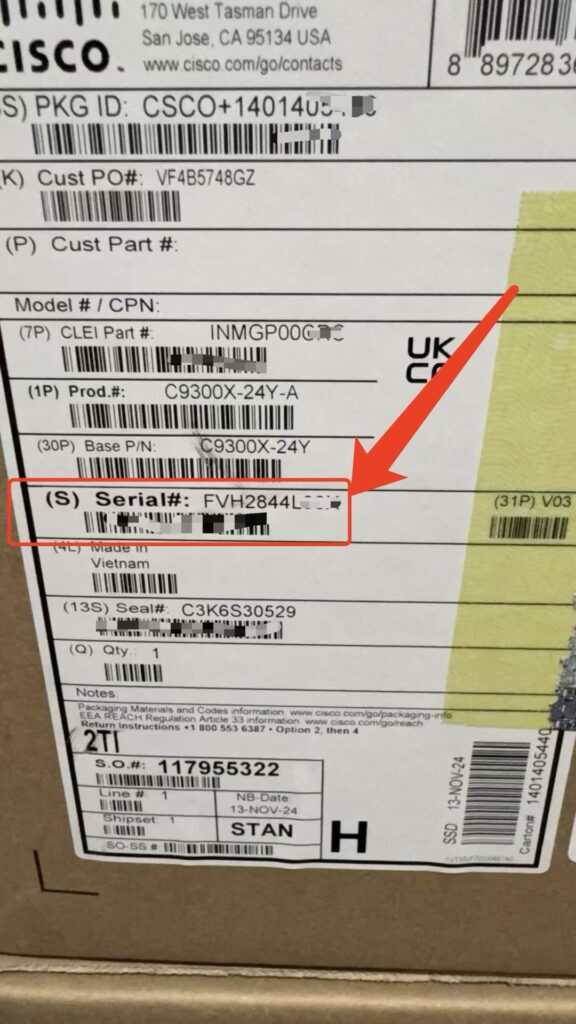
Look for S/N, SN, or Serial Number on the device or carton label. Switches and routers commonly place the label on the rear, underside, or side; access points and phones use the mounting side or base, while larger chassis and servers may use a pull-out tag.
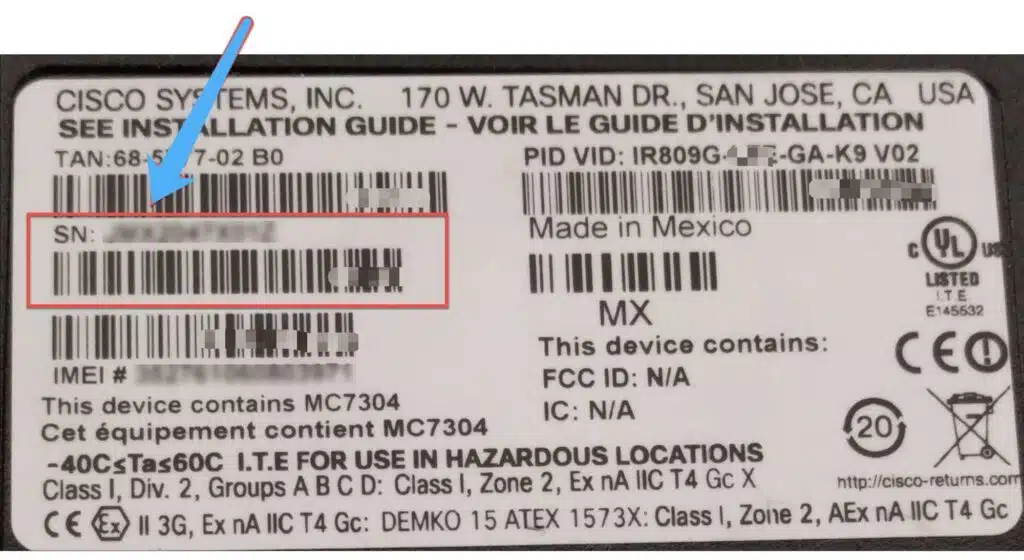
During receiving, reconcile the carton label with the order and later with the device label or electronic inventory. A matching label is evidence to record, not a complete authenticity test.
Chassis, Module, and Stack-Member Serial Numbers
Use the chassis or appliance SN for whole-device inventory and coverage, a module SN for component service, and a separate SN for each stack member. Cisco inventory can describe several physical entities:
- Chassis or appliance SN: the device-level identifier normally used for whole-device inventory and coverage checks.
- Supervisor or line-card SN: identifies a replaceable module inside a modular chassis.
- Power-supply or fan SN: identifies a field-replaceable component, not the whole switch or router.
- Stack-member SN: identifies one physical switch within a stack; every member should be recorded separately.
A component RMA may require the failed module’s serial number rather than the chassis SN.
Serial Number Locations by Device Type
Cisco switches, routers, and firewalls usually place the serial number on the rear, underside, side, or pull-out tag; access points and phones often use the mounting side or base; UCS servers use a chassis label or pull-out tag.
| Device type | Typical physical location | Preferred electronic method | What to record |
|---|---|---|---|
| Catalyst or Nexus switch | Rear, underside, side, or pull-out tag | Platform inventory command | Chassis PID, VID, and SN; each stack member if applicable |
| ISR, ASR, or Catalyst router | Rear or underside label | Platform inventory command | Chassis PID, VID, and SN |
| ASA or Secure Firewall appliance | Rear or underside label | CLI or management interface | Appliance or chassis SN; component SN only when relevant |
| Access point | Back or mounting side | Controller, AP CLI, or management UI | AP device SN and product ID |
| Cisco IP phone | Rear or base label | Phone information screen or web page where enabled | Phone SN and model |
| UCS server | Chassis label or pull-out tag | Cisco IMC/CIMC or UCS Manager | Server or chassis SN plus the relevant component inventory |
If the label and electronic output disagree, reconcile the exact unit before using the SN for support or procurement.
Which Cisco Commands and Interfaces Show a Device Serial Number?
Start with show inventory on supported Cisco hardware; use the platform-specific controller, phone, or server interface when that command does not apply.
Start with show inventory
Run show inventory on UDI-enabled Cisco hardware to retrieve the entity name and description together with its PID, VID, and SN. Cisco documents the command in its Unique Device Identifier guide.
Device# show inventory
NAME: "Chassis", DESCR: "Cisco network device"
PID: EXAMPLE-PID       , VID: V01  , SN: FOCXXXXXXXX
The sample is illustrative; names, spacing, available fields, and identifiers vary by platform and release. Locate the chassis or device row before copying an SN. Older or non-UDI-enabled equipment may return incomplete information or no inventory data.
show version is a useful secondary check on some IOS and IOS XE platforms. It may display a System serial number or Processor board ID, but Cisco uses different labels on different products. Do not treat it as a universal replacement for the hardware inventory.
Commands and Interfaces by Platform
show inventory is the usual starting point on Cisco network operating systems, while wireless controllers, IP phones, and UCS servers also provide platform-specific CLI or GUI methods.
| Platform | Starting method | Scope to keep in mind |
|---|---|---|
| IOS / IOS XE | show inventory | Can list the chassis and installed components; show version is only a platform-specific cross-check. |
| NX-OS | show inventory | Expect separate chassis, supervisor, line-card, fan, and power-supply entries on modular systems. |
| IOS XR 64-bit | show inventory | On relevant platforms, show inventory chassis is available from System Admin EXEC mode; entities without a PID may have incomplete VID or SN fields. |
| ASA | show inventory | Run from user EXEC mode and distinguish the appliance from replaceable components. |
| Secure Firewall Threat Defense | show inventory [slot_id] | Without a slot, output may include the chassis, power supplies, and other modules. |
| AireOS wireless controller / AP | show ap inventory all or show ap inventory {ap-name} on the controller; show inventory on the AP | These commands are environment-specific; controller and AP software generations differ. |
| Cisco IP Phone 8800 | Physical label or phone web page Device Information | Menu and web-page availability vary by model and configuration. |
| Cisco UCS C-Series | Cisco IMC/CIMC Chassis Summary or Inventory | UCS Manager can also expose server and component serial numbers; interface labels vary by version. |
On some Firepower workflows, the identifier used to register a chassis can differ from another serial-like value shown by the application software. Follow the documentation for that exact platform and task instead of assuming that every command returns the same identifier.
Check stock, compare options, or talk with our team.
Identify the Chassis Row in show inventory
Use the NAME and DESCR fields to determine what each row represents, then keep its PID, VID, and SN on the same record. A practical export looks like this:
| Entity | PID | VID | SN | Intended use |
|---|---|---|---|---|
| Chassis | Exact chassis PID | Hardware revision | Chassis SN | Device inventory and whole-device coverage check |
| Power supply 1 | Power-supply PID | Component revision | Power-supply SN | Component inventory or component RMA |
| Module 1 | Module PID | Module revision | Module SN | Module inventory or module RMA |
This prevents a common failure: copying the first serial number in the output even though that line belongs to a power supply or module.
What Is the Difference Between a Cisco SN, PID, VID, and Model Number?
A Cisco SN identifies one unit, a PID identifies the product type, a VID identifies the hardware revision, and a model name identifies a broader commercial family. Cisco’s product identification standard defines five UDI data elements: PID, VID, SN, entity name, and product description.
| Identifier | What it identifies | Example use |
|---|---|---|
| SN — Serial Number | One manufactured instance of a device or component | Track the exact physical unit, open an RMA, or check a device record |
| PID — Product ID | The Cisco product type recorded for the entity | Confirm the model and find the correct documentation |
| VID — Version ID | The hardware revision of that product | Distinguish revisions that share a PID |
| Model or family name | A broader commercial or technical family | Initial product discovery; usually too broad for final asset records |
| UDI record | Cisco’s five-element standard: PID, VID, SN, entity name, and product description | Consistent inventory and support identification |
Cisco states that the combination of PID and SN is unique across its products. Record PID + VID + chassis SN together. Cisco calls the PID coded on the hardware a base PID; additional orderable PIDs may be associated with it. Map a quoted bundle or configured SKU to the base hardware and its options rather than requiring the strings to be identical.
Common Uses for a Cisco Serial Number
A Cisco serial number distinguishes one physical unit for inventory, receiving, support, contract research, and configuration reconciliation.
- Asset inventory: distinguish individual devices that share the same model.
- Receiving inspection: compare the carton and chassis labels with electronic inventory, then map the quoted orderable or bundle PID to the base hardware and included options.
- Support and RMA: identify the exact chassis or failed field-replaceable unit.
- Service-contract research: check whether Cisco associates the serial number with active coverage.
- Warranty research: connect a device record with any warranty information visible to the authorized account.
- Secondary-market due diligence: record what the label and Cisco data say before accepting a used or refurbished unit.
- Configuration reconciliation: use the returned PID and component rows as one input when comparing a quote, packing list, and delivered equipment.
What a Serial-Number Match Cannot Prove
A Cisco serial-number match cannot by itself prove authenticity, ownership, condition, license entitlement, product warranty, or active service coverage. Additional evidence is needed to establish:
- that the physical device is genuine or that its label has not been copied;
- who legally owns the device or whether it may be resold;
- that the unit works or contains the expected internal hardware;
- that a software license is present, transferable, or assigned to the buyer;
- that the complete quoted BOM shipped inside a sealed carton;
- that the device has remaining product warranty or active service-contract coverage.
For a procurement decision, pair the serial record with label and packaging photographs, CLI or GUI inventory, supplier documentation, the invoice or purchase order, and the appropriate Cisco portal result.
How to Use the Layer23 Cisco Serial Number Tool
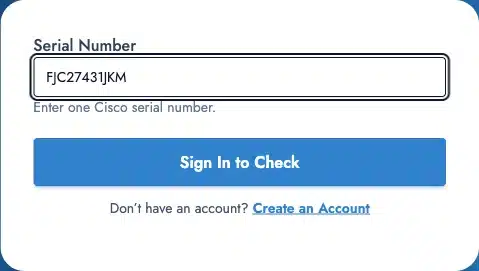
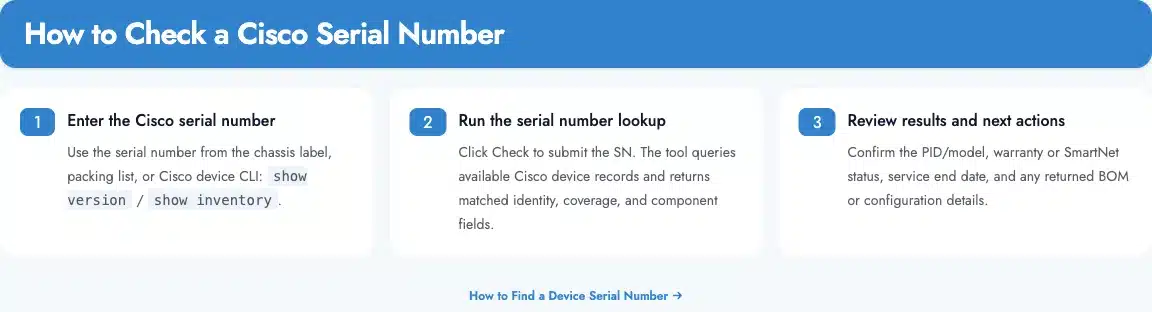
To use the Layer23-Switch Cisco Serial Number Check & Lookup Tool, sign in, complete the security check, enter one device-level SN, run the lookup, and review each returned field in context.
Step 1: Confirm the Device-Level Serial Number
Enter the chassis or device-level Cisco serial number from the physical label or inventory output; for a stack, check each member separately. Copy the value exactly and verify ambiguous characters such as O/0, I/1, and S/5 against a second source.
Step 2: Sign In and Complete Verification
Open the tool, sign in to your Layer23 tools account, and complete the security verification if prompted.
Step 3: Run the Lookup
Paste one chassis or device SN into the Serial Number field, then select Check Serial Number.
Step 4: Review the Result
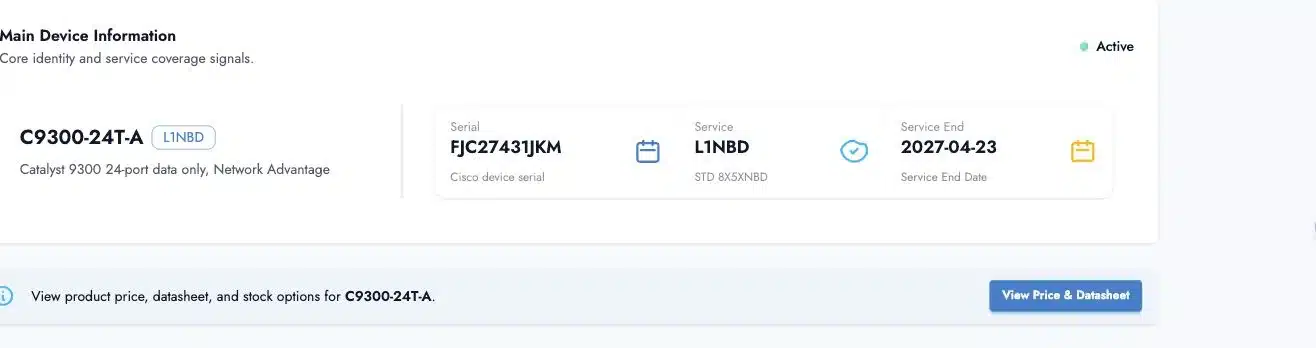
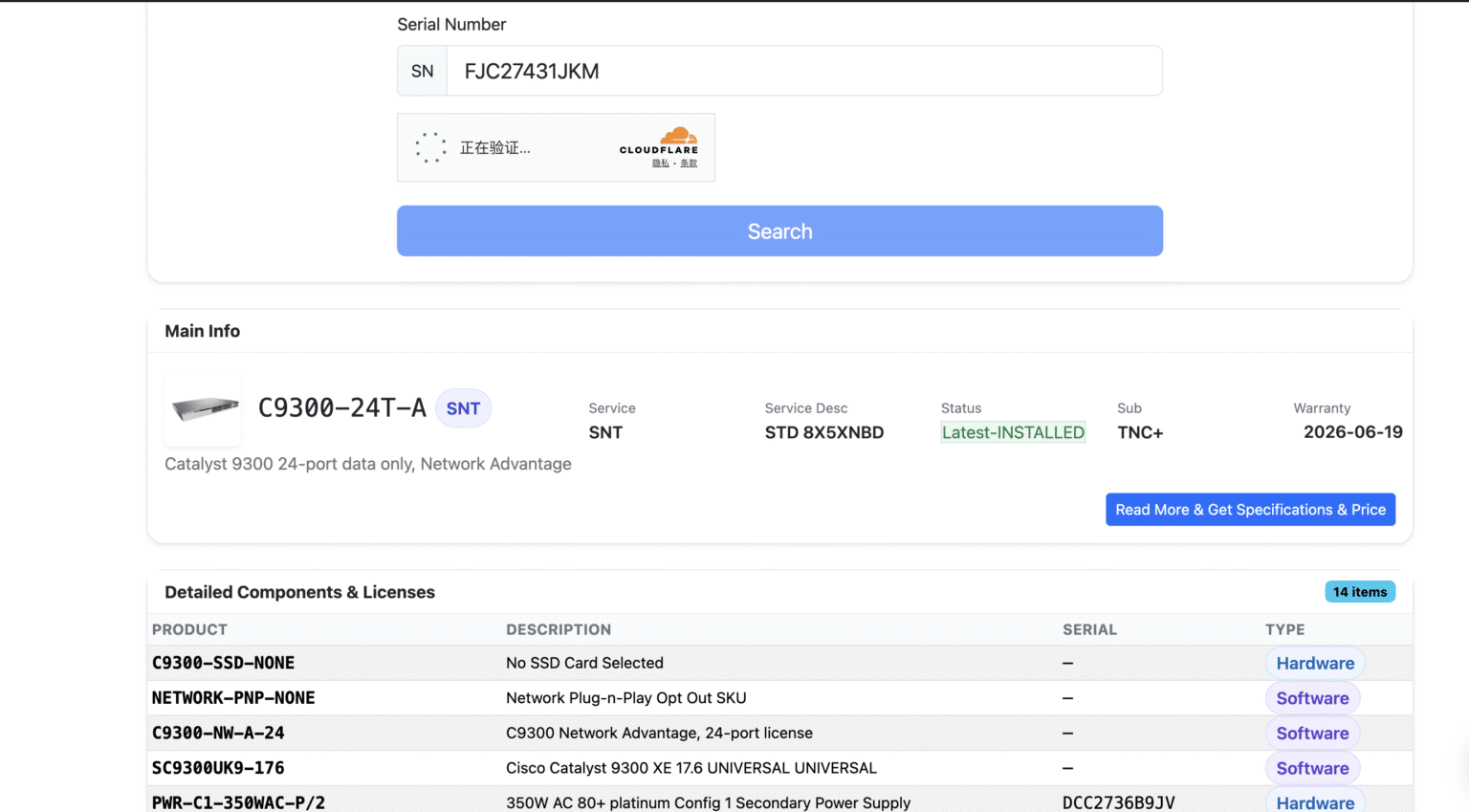
Interpret the matched PID, coverage status, service date, warranty-related fields, and BOM rows as separate signals rather than one overall pass-or-fail result. Depending on the available record, a result can contain:
- matched PID, model, or product description;
- service or coverage status;
- a service end date;
- warranty-related fields;
- component, BOM, or license rows.
Compare the returned base PID and SN with the label and inventory output, then map any bundle or configured SKU on the quotation to its hardware and options. Confirm commercially important service information in the relevant Cisco portal under an account with the required access.
If the Result Is Unavailable
The Layer23 tool can show an unavailable result when the SN or entity is wrong or when the connected record does not return that field. Recheck the SN and entity type, then use the troubleshooting sequence below; unavailable is not proof of a counterfeit or out-of-warranty device.
For 20 or more items, use the bulk template below the form and send the completed file to support@layer23-switch.com. Keep the original inventory export for reconciliation.
How to Check a Cisco Serial Number with Official Cisco Tools
Use Cisco Device Coverage Checker for service-contract coverage, Cisco My Devices for account-based inventory, and Warranty and Service Finder for product-level warranty terms. No single Cisco page answers every serial-number question.
| Cisco resource | Best use | Typical input | Access and limitation |
|---|---|---|---|
| Device Coverage Checker | Check whether an SN is associated with active Cisco service coverage | One or more serial numbers | Requires a valid Cisco.com account; visible details depend on account role and permissions |
| Cisco My Devices | Maintain an account-based device inventory and review visible contract, warranty, and lifecycle information | Chassis SN and device records | Contract details require the user’s Cisco.com profile to be associated with the relevant contract |
| Warranty and Service Finder / Product Warranties | Find warranty terms and service offerings for a product type | PID, product description, or product family | Not a serial-number-level contract-entitlement check; Cisco may require sign-in |
| Cisco Support Tools Catalog | Find the appropriate Cisco support workflow | The task you need to complete | A directory of tools, not one lookup database |
Device Coverage Checker
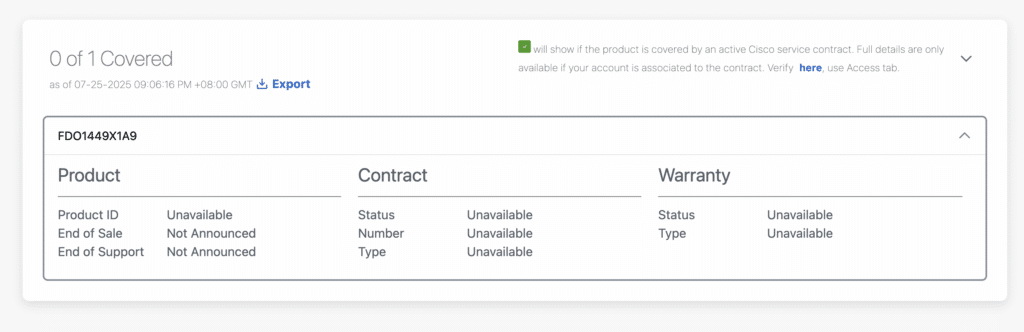
Cisco describes Device Coverage Checker primarily as a service-contract coverage tool. It requires a valid Cisco.com account. Guest access provides limited manual coverage confirmation, while eligible customer and partner accounts can receive more detail and use the current CSV/TXT bulk workflow.
Results represent the query time. An SN absent from the contract database may still be valid but not attached to a Cisco service contract.
My Devices
To check a Cisco serial number in My Devices, sign in, add the chassis hardware SN to inventory, and review the fields visible to the account. Cisco My Devices is an account-based inventory portal, and its user guide explains that product, contract, warranty, location, and lifecycle visibility depends on role and permissions.
These retained screenshots show the general workflow; Cisco can change the interface.
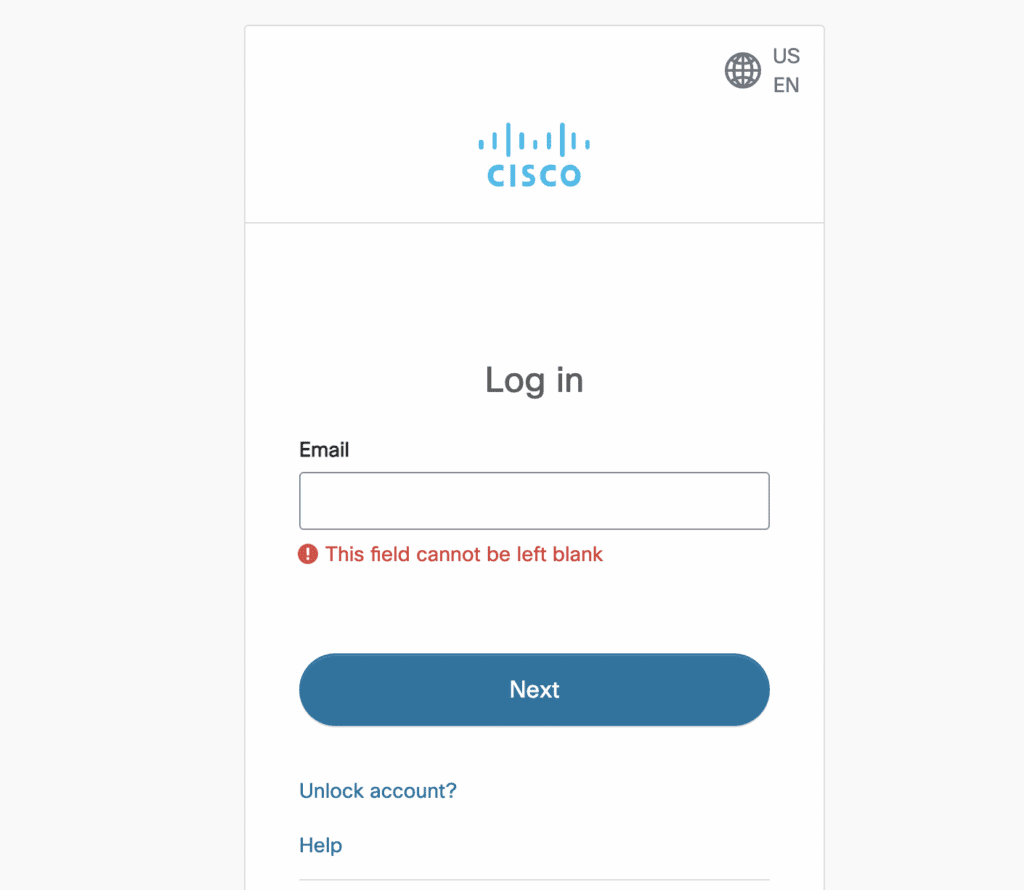
Step 1: Sign in with a Cisco.com account.
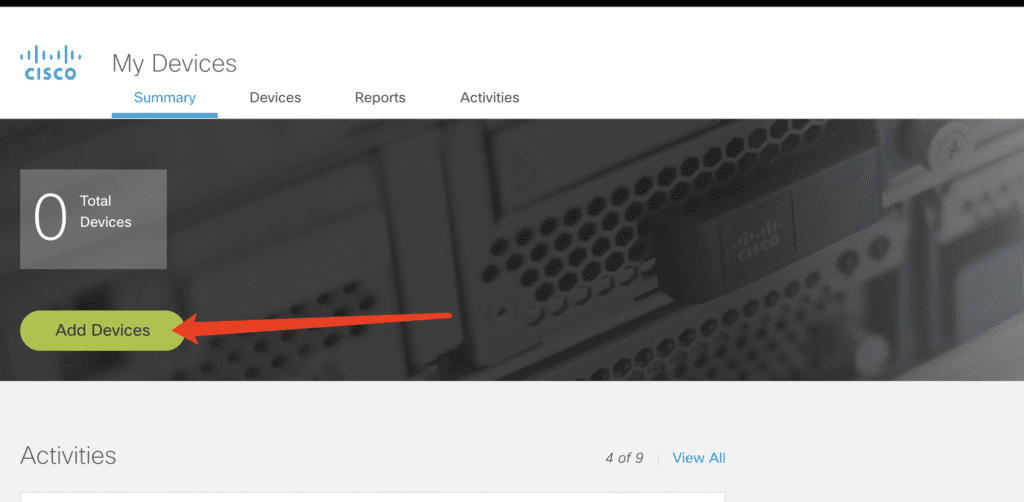
Step 2: Open the Add Devices workflow.

The Devices tab provides the same starting action.
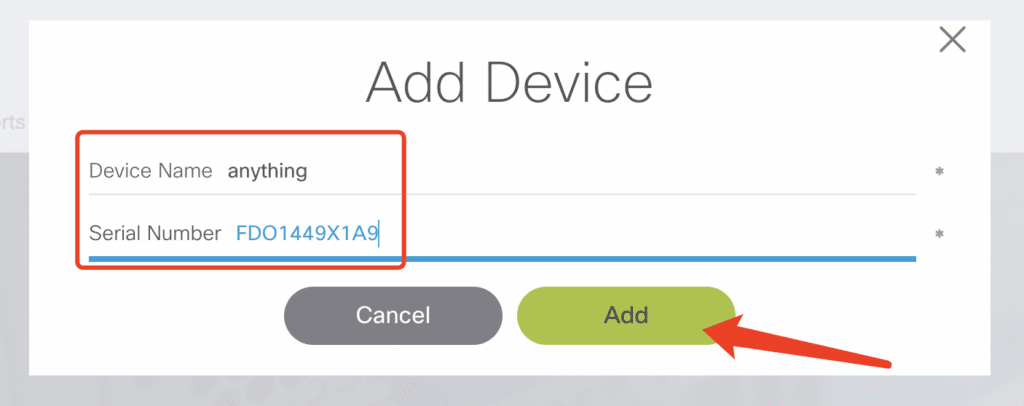
Step 3: Enter a device name and the chassis SN.
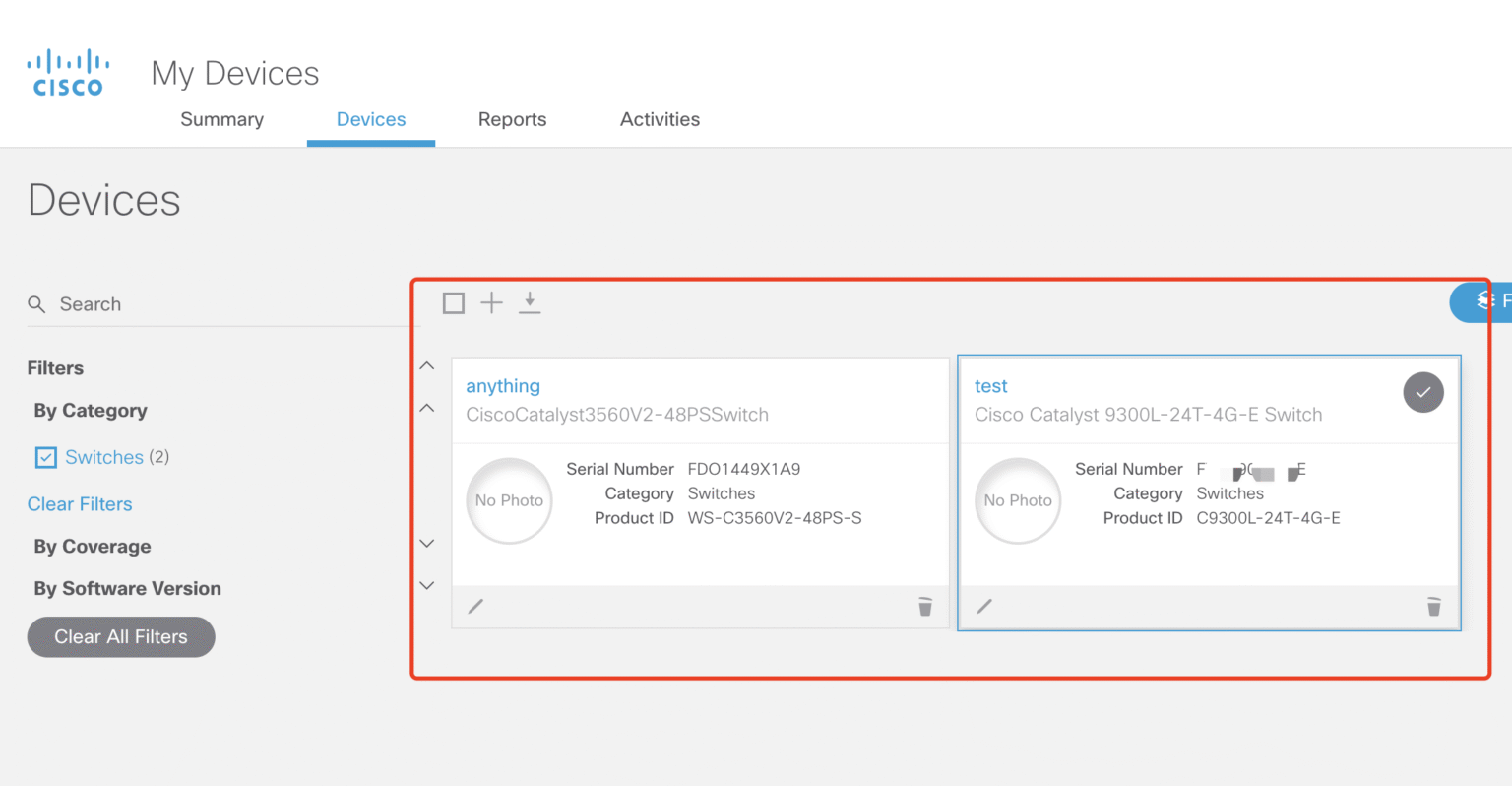
Step 4: Review the saved SN and product ID.

An identity card is not proof of active warranty.
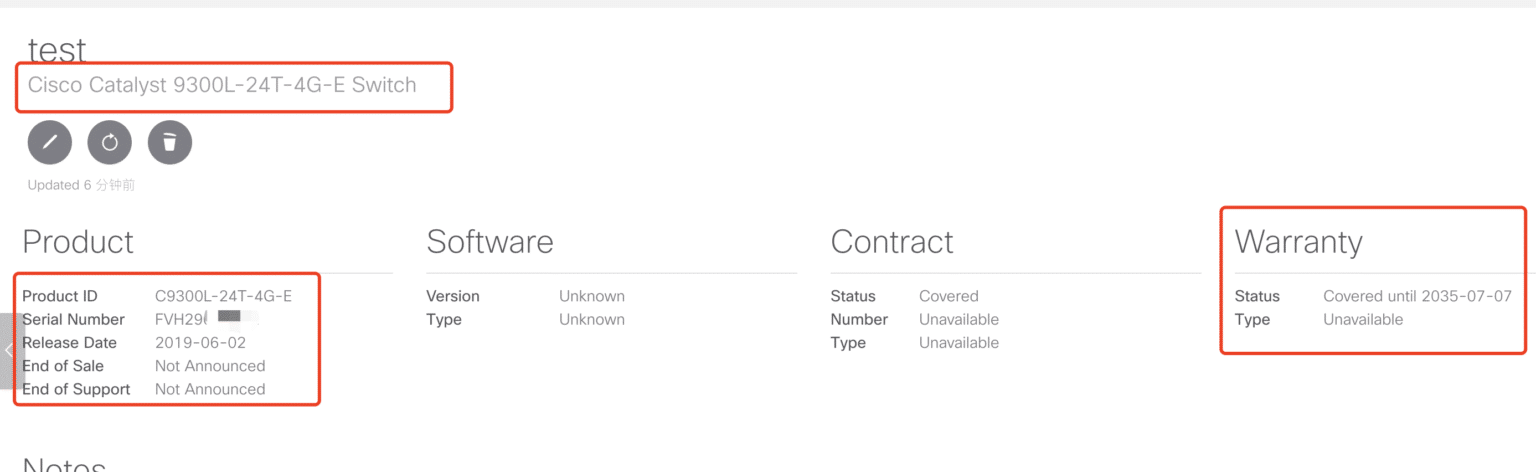
Product, contract, and warranty are separate result groups.
Unassociated Contracts can mean that an active contract exists but the signed-in profile is not associated with it. Interpret unavailable fields in the same access context.
Warranty and Service Finder
No—Cisco Warranty and Service Finder searches by PID, product description, or product family and returns product-level warranty terms and service offerings; it does not replace a serial-number coverage query or account contract view.
What Is the Difference Between Cisco Warranty, Service Coverage, EOL, and an Unavailable Result?
Cisco warranty covers eligible manufacturing defects, service coverage reflects contract entitlement, EOL tracks lifecycle milestones, and an unavailable result means the queried source returned no usable record.
| Result or concept | What it means | What it does not prove |
|---|---|---|
| Cisco product warranty | Limited Cisco responsibility for covered manufacturing defects under the applicable warranty terms | Active TAC access, software updates, or every benefit of a support contract |
| Service coverage / Smart Net-related coverage | Support entitlement associated with an active service contract; benefits depend on the contract | That the device remains within its original product warranty |
| End of Sale (EOS) | The date Cisco stops accepting orders through its sales channels | That all support ends immediately or that an installed device stops working |
| End of Life (EOL) | A lifecycle process containing multiple milestones from discontinuance through final support | The warranty, ownership, or current contract state of one specific unit |
| Last Date of Support (LDOS) | The final date for Cisco support under applicable active service contracts | A promise that every device remains entitled through that date |
| Unavailable / no match | The requested source did not return the field or record in that session | Automatically fake, stolen, unsupported, uncovered, or out of warranty |
Cisco’s hardware warranty FAQ and EOL policy document these boundaries. A product can be past End of Sale and still receive support under an active contract before its Last Date of Support.
For a PID-level lifecycle check, use the Layer23-Switch Cisco EOL & EOSL Checker. Keep that lifecycle result separate from the serial-number and contract records.
Troubleshoot an Unavailable or Empty Result
A Cisco serial number lookup may return no useful result because of an input error, the wrong hardware entity or tool, account visibility, record history, or temporary data availability. Check the likely causes in this order:
- Input error: compare the submitted value with the label and electronic inventory, paying attention to similar characters.
- Wrong entity: confirm that you did not submit a module, fan, or power-supply SN for a whole-device check.
- Wrong tool: a PID-based warranty finder cannot answer a serial-level question, and a contract checker cannot replace an EOL lookup.
- Account visibility: the signed-in profile may not be associated with the relevant contract or customer record.
- Record history: older, replacement, RMA, or specially bundled hardware may require manual reconciliation.
- Temporary availability: the application or upstream data source may not have returned the field during that session.
If the result matters to a purchase or support commitment, save a screenshot or export with the query date, then ask Cisco or the responsible supplier to reconcile the record rather than guessing what “unavailable” means.
How Do Procurement Teams Check Multiple Cisco Serial Numbers?
Procurement teams should normalize PID, VID, SN, entity type, label evidence, and lookup date before submitting multiple Cisco serial numbers through an approved bulk workflow.
Bulk Workflow for 20 or More Serial Numbers
For 20 or more Cisco serial numbers, preserve the source inventory, classify each hardware entity, and submit a clean file through the appropriate Layer23 or Cisco bulk workflow.
- Export the inventory from the device CLI, controller, or management platform where possible.
- Keep separate columns for entity type, PID, VID, and SN.
- Mark chassis, module, power-supply, and stack-member records before deduplicating.
- Photograph the product and carton labels and preserve the original filenames.
- Use the Layer23 bulk workflow for initial organization when you have 20 or more items.
- Use Cisco’s CSV/TXT workflow or My Devices when official coverage or account association must be confirmed.
- Isolate unavailable records and PID/SN mismatches for manual review.
- Store the lookup date and source because coverage and account visibility can change.
Minimum Audit Record
A Cisco serial number audit record should connect the chassis or component identity with its PID, VID, label evidence, electronic inventory, supplier documents, lookup source, date, and returned status.
| Field | Why keep it |
|---|---|
| Chassis or component designation | Prevents a module SN from being mistaken for the device SN |
| SN, PID, and VID | Preserves the unique unit, product identity, and hardware revision |
| Label photograph | Connects the typed identifiers with the physical unit or sealed carton |
| CLI or GUI inventory | Provides an electronic comparison with the label |
| Supplier and invoice or PO | Preserves commercial provenance |
| Lookup source and date | Shows where and when the result was obtained |
| Returned status and exceptions | Preserves unavailable fields, mismatches, and follow-up work |
Used or Refurbished Equipment Checklist
Verify used or refurbished Cisco equipment by reconciling its physical labels, electronic inventory, quoted SKU, configuration, supplier documents, coverage, lifecycle, and inspection record.
Before accepting secondary-market equipment, confirm that:
- the chassis label and CLI inventory agree on the chassis SN and base PID, and any bundle or orderable PID on the quotation has been mapped to that hardware and its options;
- the VID and installed modules match the configuration being sold;
- packaging and security seals are consistent with the claimed condition;
- the supplier can provide an invoice and relevant sourcing documents;
- service coverage, product warranty, license entitlement, and EOL have been checked as separate issues;
- any unavailable Cisco field has been documented instead of reinterpreted as a pass;
- the actual unit can be associated with the photographs and inspection record.
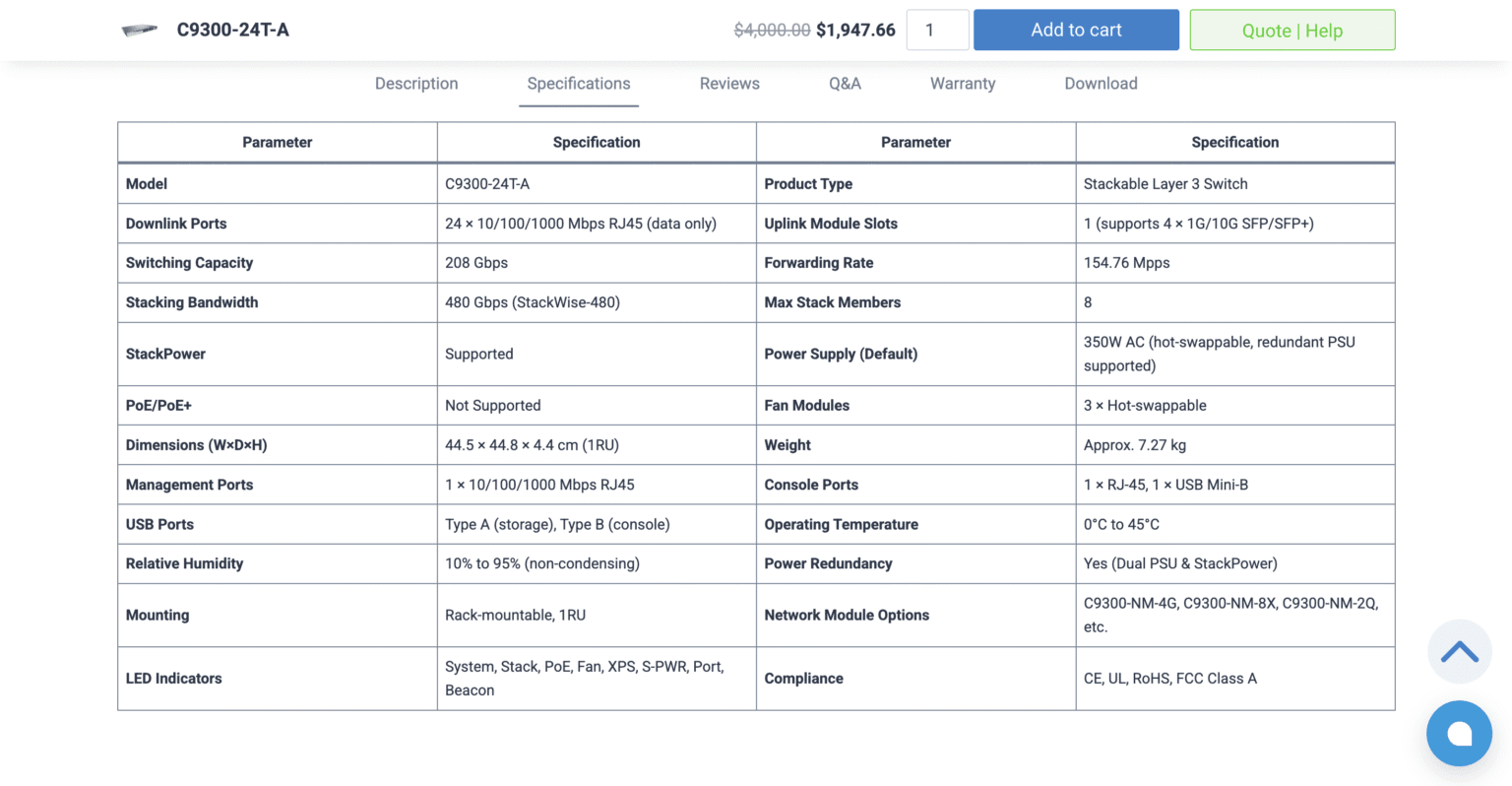
Once the lookup identifies the hardware’s base PID, use it to confirm the platform and technical specifications. Then reconcile any bundle or orderable PID on the quotation with the included hardware, licenses, subscriptions, and options. Do not quote or approve a purchase from a broad family name alone.
Serial-number format, manufacturing date, and factory-code interpretation are a separate task. Do not assume that every Cisco SN follows one universal public pattern. See the Cisco serial number manufacturing date and factory location guide for that topic, and verify any procurement-critical conclusion against the device label and applicable Cisco records.
How Do Cisco Serial Number Checks Work?
A Cisco serial number check matches a chassis SN with available device, coverage, warranty, or lifecycle records; accurate interpretation also requires the corresponding base PID and VID.
Where Is the Serial Number on a Cisco Switch or Router?
Look for S/N, SN, or Serial Number on the rear, underside, side, or pull-out tag, then compare it with the chassis inventory entry when possible.
Which Cisco Command Shows the Device Serial Number?
On UDI-enabled IOS, IOS XE, NX-OS, IOS XR, ASA, and Secure Firewall platforms, start with show inventory. Support and output vary; show version is only a secondary check on some devices.
Why Does Cisco show inventory Display Multiple Serial Numbers?
Cisco show inventory can list the chassis and separate field-replaceable units. Use the entity name and description to select the right SN.
Is a Cisco PID the Same as a Cisco Serial Number?
No—a Cisco PID identifies the product type, an SN identifies one unit or component, and a VID identifies the hardware revision.
Can a Cisco Serial Number Prove That a Device Is Genuine?
No—a Cisco serial-number match cannot prove authenticity, ownership, or condition without reconciling the label, electronic inventory, supplier documents, and physical unit.
Can Cisco Warranty Status Be Checked by Serial Number?
Sometimes—Cisco Device Coverage Checker may show warranty-related details to authorized accounts, while Warranty and Service Finder is primarily PID- or product-based. Product warranty and service-contract coverage are different statuses.
Why Does a Valid-Looking Cisco Serial Number Return an Unavailable Result?
Check for an input error, the wrong entity or portal, account visibility, an older record, or temporary data availability. “Unavailable” does not mean fake or out of warranty.
Can a Cisco Serial Number Reveal the Manufacturing Date or Country?
Some formats provide manufacturing clues, but no single public decoding rule should be assumed for every product and era. Use labels or official supply-chain documents for procurement-critical conclusions.
Before you check: identify the chassis or device-level SN, save its PID and VID, and keep the label or inventory evidence that connects those values to the physical unit. Use Layer23 for a fast device-record check and organized follow-up; use Cisco’s official tools when contract coverage, account association, or product warranty terms require an authoritative source.
Whatever the result, keep warranty, service coverage, licensing, lifecycle, authenticity, and ownership as separate questions. A serial-number lookup is most useful when it narrows those questions instead of pretending to answer all of them at once.