How to Configure Port Mirroring (SPAN) on Cisco Switch: A Practical, Step-by-Step Guide
Network administrators often need to inspect, analyze, or monitor network traffic for various reasons, such as troubleshooting connectivity issues, network performance diagnostics, and enhancing security visibility. A fundamental technique used to accomplish this is Port Mirroring, also known in Cisco networks as SPAN (Switched Port Analyzer).
This guide provides you with clear, step-by-step instructions on configuring SPAN port mirroring on Cisco switches, along with expert tips to help you avoid common pitfalls and achieve effective results.
What Exactly is Cisco SPAN (Port Mirroring)?
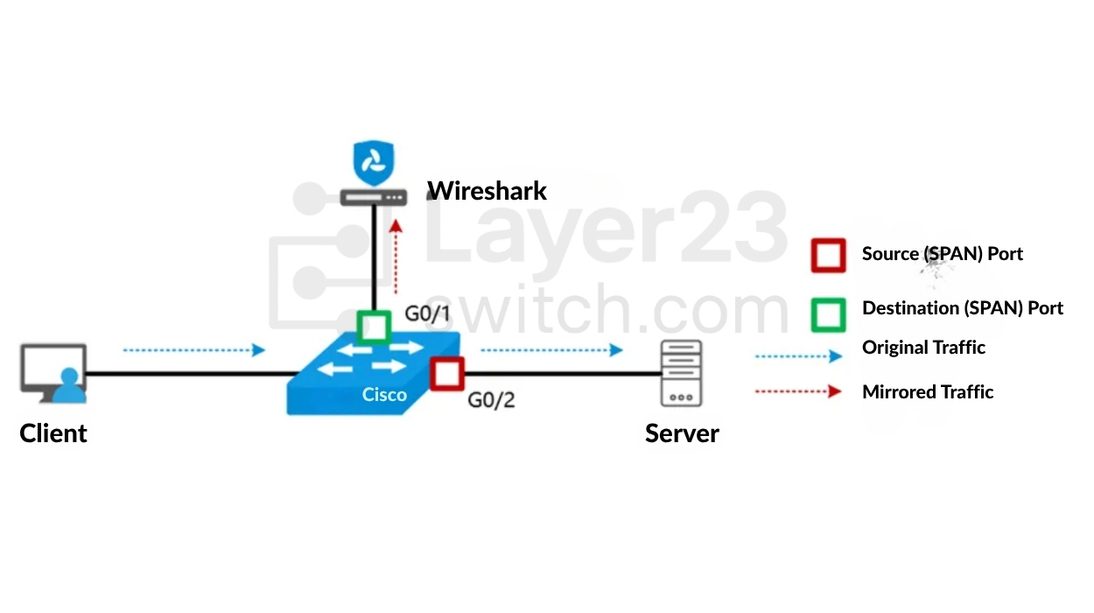
Simply put, SPAN duplicates traffic from one or multiple Cisco switch ports (or VLANs) and forwards that duplicated traffic to a designated monitoring port. You can then connect analysis tools (such as Wireshark or security appliances) to this monitoring port to examine real-time data.
SPAN helps you:
- Troubleshoot network performance and connectivity problems quickly.
- Monitor network traffic for anomalies and security threats.
- Perform deep packet inspections and analysis without interrupting normal traffic.
Cisco SPAN Modes Explained
Cisco switches provide three modes for port mirroring:
- Local SPAN: Duplicates traffic within the same switch.
- RSPAN (Remote SPAN): Uses VLANs to forward mirrored traffic across multiple switches.
- ERSPAN (Encapsulated Remote SPAN): Uses GRE encapsulation to send mirrored traffic across routed networks.
Before You Start: Key Considerations
- Switch Model & IOS Version: Ensure your Cisco switch model supports SPAN and verify your IOS version compatibility.
- Performance: While typically minimal, extensive traffic mirroring can affect performance, so only mirror essential ports.
- Destination Port: The SPAN destination port will become “receive-only” and cannot send traffic—so select an unused interface for monitoring.
Cisco SPAN Configuration (Local SPAN)
Step 1: Enter Cisco Switch CLI
Connect via SSH or console and enter privileged mode:
Switch> enable
Switch#
Step 2: Select the Source Interface (or VLAN)
Choose the port you want to monitor traffic from:
Switch# configure terminal
Switch(config)# monitor session 1 source interface GigabitEthernet1/0/2- To monitor multiple ports or VLANs:
Switch(config)# monitor session 1 source interface GigabitEthernet1/0/2, GigabitEthernet1/0/3
# or VLAN
Switch(config)# monitor session 1 source vlan 10- Specify direction explicitly (optional):
Switch(config)# monitor session 1 source interface GigabitEthernet1/0/2 bothDirection can be:
rx(received packets)tx(transmitted packets)both(default, recommended)
Step 3: Select the SPAN Destination Interface
This port connects to your analysis device (Wireshark, IDS):
Switch(config)# monitor session 1 destination interface GigabitEthernet1/0/10Note: Destination ports cannot transmit normal network traffic. Use a dedicated port.
Step 4: Verify SPAN Configuration
Confirm your setup:
Switch# show monitor session 1You’ll see a summary confirming source and destination interfaces.
Remote SPAN (RSPAN) Configuration
RSPAN sends mirrored traffic across multiple switches via a dedicated VLAN.
Configuration Steps:
Step 1: Create RSPAN VLAN (on all involved switches)
Switch(config)# vlan 200
Switch(config-vlan)# remote-span
Switch(config-vlan)# exit
Step 2: Source Switch Configuration
Switch(config)# monitor session 1 source interface GigabitEthernet0/1 both
Switch(config)# monitor session 1 destination remote vlan 200
Step 3: Destination Switch Configuration
Switch(config)# monitor session 1 source remote vlan 200
Switch(config)# monitor session 1 destination interface GigabitEthernet0/2
Step 4: Verify RSPAN Configuration
Switch# show monitor session 1Encapsulated Remote SPAN (ERSPAN) Configuration
ERSPAN encapsulates mirrored traffic in GRE packets, suitable for routed networks.
Configuration Steps:
Step 1: Source Switch Configuration
Switch(config)# monitor session 1 type erspan-source
Switch(config-mon-erspan-src)# source interface GigabitEthernet0/1 both
Switch(config-mon-erspan-src)# no shutdown
Switch(config-mon-erspan-src)# destination
Switch(config-mon-erspan-src-dst)# erspan-id 100
Switch(config-mon-erspan-src-dst)# ip address 10.1.1.2
Switch(config-mon-erspan-src-dst)# origin ip address 10.1.1.1
Switch(config-mon-erspan-src-dst)# exit
Step 2: Destination Switch Configuration
Switch(config)# monitor session 1 type erspan-destination
Switch(config-mon-erspan-dst)# destination interface GigabitEthernet0/2
Switch(config-mon-erspan-dst)# no shutdown
Switch(config-mon-erspan-dst)# source
Switch(config-mon-erspan-dst-src)# erspan-id 100
Switch(config-mon-erspan-dst-src)# ip address 10.1.1.2
Switch(config-mon-erspan-dst-src)# exit
Step 3: Verify ERSPAN Session
Switch# show monitor session 1Typical SPAN Setup Scenario
Let’s say you have a server connected to GigabitEthernet1/0/2 experiencing network latency issues. You want to monitor its inbound and outbound traffic using Wireshark on your laptop connected to port GigabitEthernet1/0/10.
Your CLI configuration would look like this:
Switch# configure terminal
Switch(config)# monitor session 1 source interface GigabitEthernet1/0/2 both
Switch(config)# monitor session 1 destination interface GigabitEthernet1/0/10
Now, run Wireshark on your laptop and start capturing. Traffic to and from your server is immediately visible—enabling precise diagnostics.
Common Cisco SPAN Issues
- No Traffic at Monitor Port:
Ensure source and destination ports are correct. Verify monitoring device interface is set to promiscuous mode. - Performance Degradation:
Reduce the number of monitored ports or VLANs. SPAN all traffic only when absolutely necessary. - SPAN Limitations:
Cisco switches typically support limited concurrent SPAN sessions. Check documentation (show monitor) to confirm limitations.
SPAN Configuration FAQ
-
Does SPAN configuration interrupt normal network operation?
No, SPAN mirrors traffic without affecting normal data flow, though excessive mirroring can slightly degrade switch performance.
-
Can the destination port be used for normal network access?
No, a SPAN destination port becomes receive-only and should be dedicated solely for monitoring devices.
-
What’s the difference between SPAN and RSPAN?
SPAN mirrors traffic within a single switch; RSPAN forwards mirrored traffic across multiple switches using a dedicated VLAN.
-
What’s the difference between SPAN and RSPAN?
SPAN mirrors traffic within a single switch; RSPAN forwards mirrored traffic across multiple switches using a dedicated VLAN.
-
Can SPAN ports cause loops or broadcast storms?
No, SPAN destination ports don’t transmit regular frames, so they won’t cause loops or storms.
-
How many SPAN sessions can a Cisco switch handle?
Typically, Cisco Catalyst switches support 2-4 sessions, depending on the specific hardware and software model. Always verify with your model’s datasheet.
Advanced Alternatives to SPAN
For more complex networks, consider:
- Network TAPs: Hardware devices providing transparent and reliable traffic duplication without affecting switch performance.
- Packet Brokers: Advanced devices aggregating, filtering, and forwarding monitored traffic to multiple tools.
SPAN—A Critical Skill for Network Professional
Mastering Cisco port mirroring (SPAN) significantly enhances your network visibility, security, and troubleshooting efficiency. By following the above steps, verifying your setup, and understanding SPAN best practices, you’ll confidently manage network analysis tasks with ease.
Remember to regularly verify SPAN settings (show monitor) and adhere to recommended practices for optimal performance.
Continue Your Learning: